
Most lawyers use Claude as a slightly smarter Google. You ask a question, you get an answer, you copy-paste the result into a Word document. It's useful, but it's chat.
Cowork is something else. You describe a goal, then you go do something else. Claude works autonomously on your machine, creates the files, and files them away in your folders. While you're pleading, meeting a client or sitting in a meeting, Claude organizes your documents, drafts your summaries, prepares your case-law research and drops the result into your folder structure.
This guide covers everything: installation, configuration, concrete workflows for lawyers, legal connectors, and the limits you need to know before putting anything sensitive into it. No useless jargon, just practical material you can apply.
Cowork vs Chat: why it's a different world
Classic chat: useful, but limited
You know Claude through chat. You ask a question, you get an answer. It's useful — and Claude does have a memory you can switch on so it remembers your preferences from one session to the next. But for each specific task, you have to re-supply context: copy-paste the relevant documents, re-explain the case, restate your expectations. And above all, Claude has no direct access to your files or to your legal sources.
What Cowork changes
Cowork is an autonomous agent built into the Claude Desktop app. In practice:
- ▸ You describe a goal: "Prepare a briefing note for me on recent case law concerning dismissal for gross misconduct in the banking sector."
- ▸ Claude breaks the task down into sub-steps.
- ▸ It executes each step: research, drafting, formatting.
- ▸ It creates the files directly in your folder.
- ▸ You come back 15 minutes later: it's done.
In concrete terms, you delegate a task as you would to a colleague. The difference: this colleague has access to your files, never loses context (within a Project), and can work while you're elsewhere.
The difference in a table
- Chat has a general memory, but for each specific task you have to re-supply the context. Cowork keeps the case context permanently via Projects.
- The key difference: Cowork accesses your files, produces deliverables, and works autonomously while you do something else.
- Chat remains the right choice for quick questions. Cowork is built to produce structured deliverables on your cases.
Prerequisites and installation
What you need
- ▸A Claude Pro subscription ($20/month) or Max ($100/month). Cowork is available from the Pro plan. Nothing more to pay.
- ▸The Claude Desktop app on Mac or Windows (not the browser version).
- ▸30 minutes set aside for the initial configuration.
Step-by-step installation
Download Claude Desktop
Go to claude.com/download and install the app.
- Mac: macOS 11 (Big Sur) or later. Intel and Apple Silicon.
- Windows: Windows 10 version 2004+ (build 19041+). x64 only.
Sign in
Open the app and sign in with your Claude Pro or Max account.
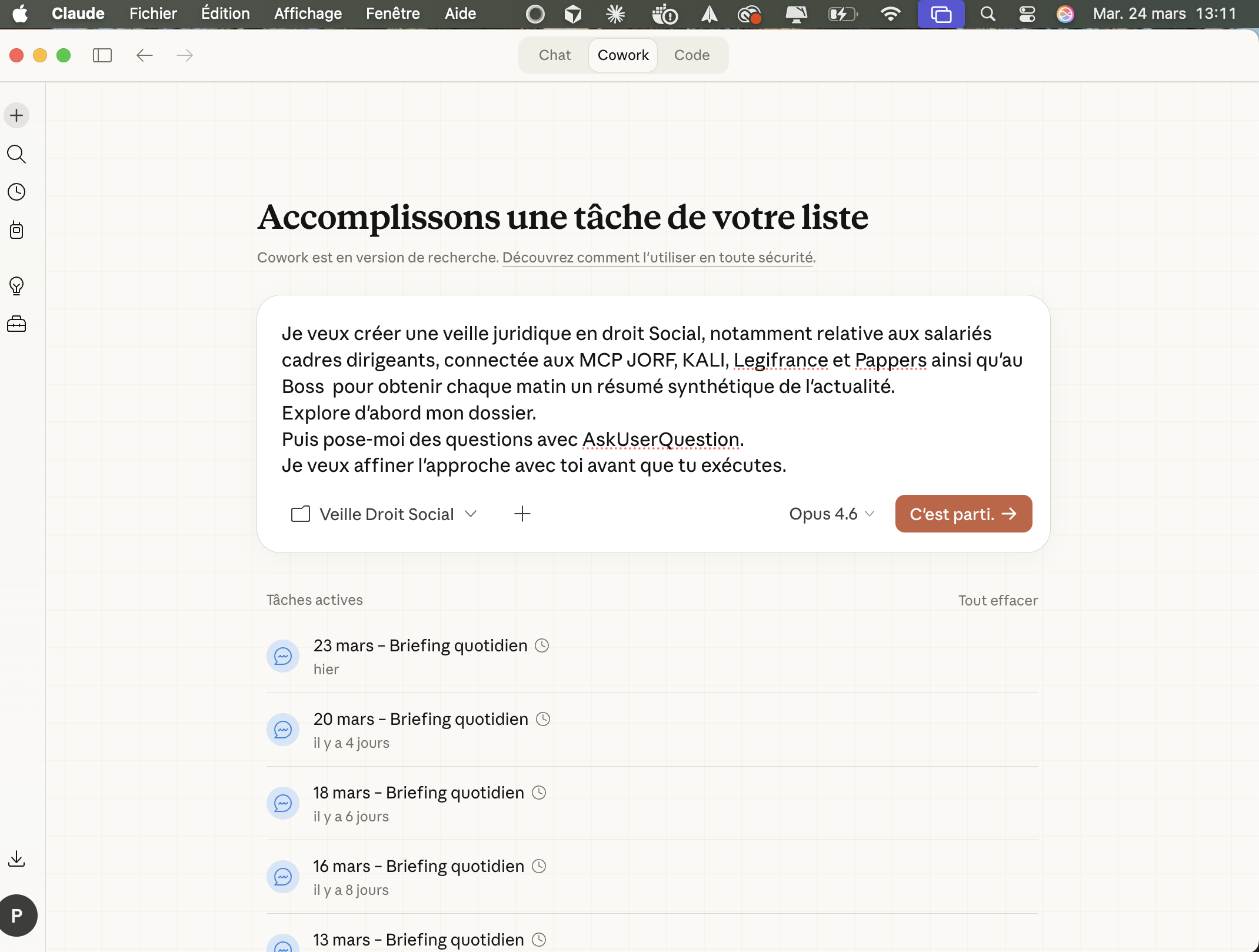
Open Cowork
At the top of the interface, you'll see three tabs: Chat, Cowork and Code. Click Cowork.
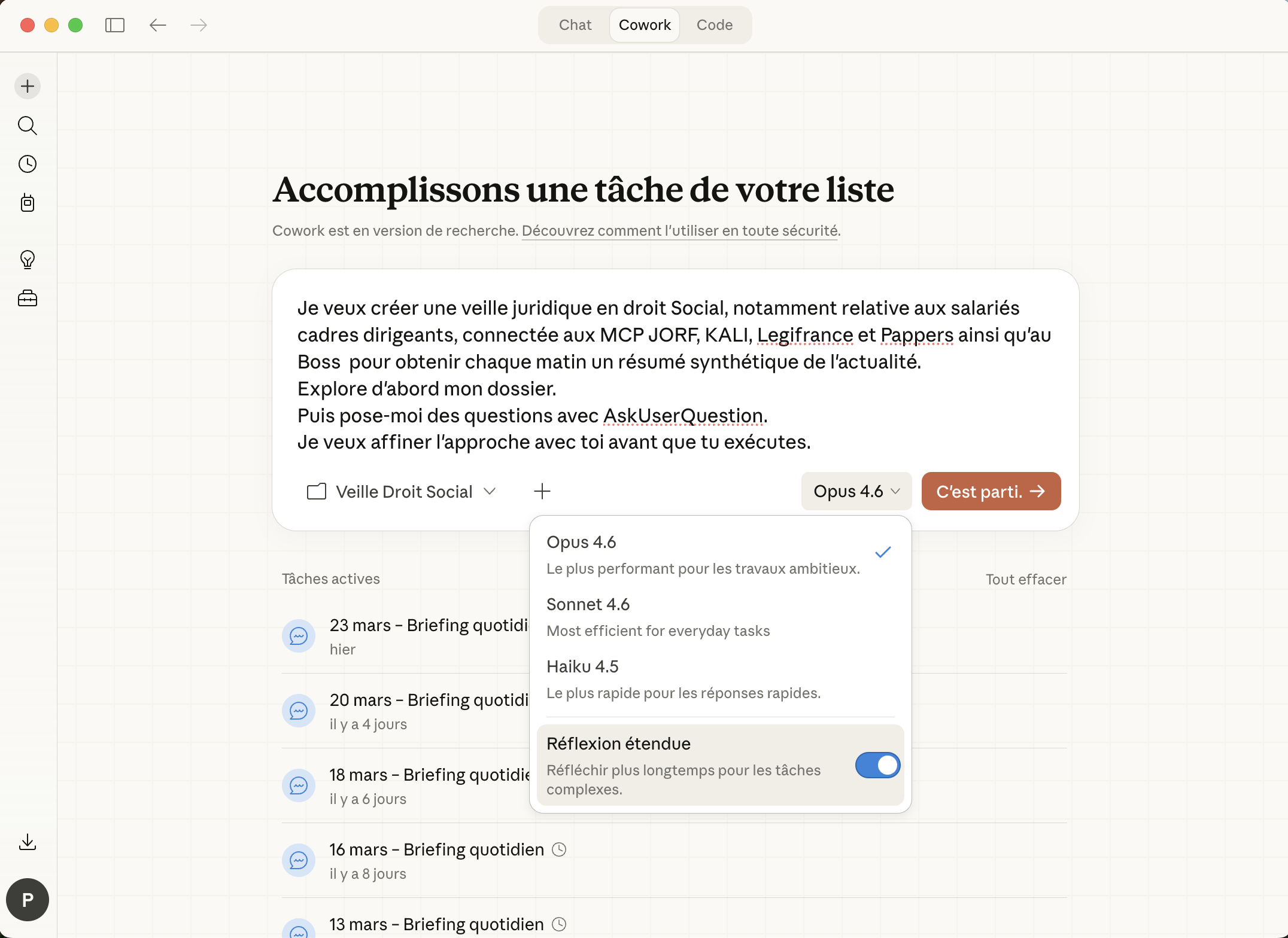
Select the right model
Select Opus 4.6 and turn on Extended Thinking. It's the most capable model available, the one you want for legal work.
Grant access to a folder
Cowork will ask you to select a working folder. This is the scope within which Claude can read, edit and create files.
Recommendation: create a dedicated folder such as ~/Documents/Claude-Firm/ to start. You can expand it later.
Cowork runs in an isolated virtual machine (VM) on your computer. Claude only has access to the folders you explicitly authorize. The VM is separate from your main operating system.
Tip
You've just done more than 90% of Claude users. Most stop at chat. You now have an autonomous agent ready to work.
The prompt that simplifies everything
Before we get into folders, files and structure: here is the prompt you should run at the start of every Cowork session.
I want [TASK] for [SUCCESS CRITERION].

First explore my folder.

Then ask me questions using AskUserQuestion.

I want to refine the approach with you before you execute.
How it actually works
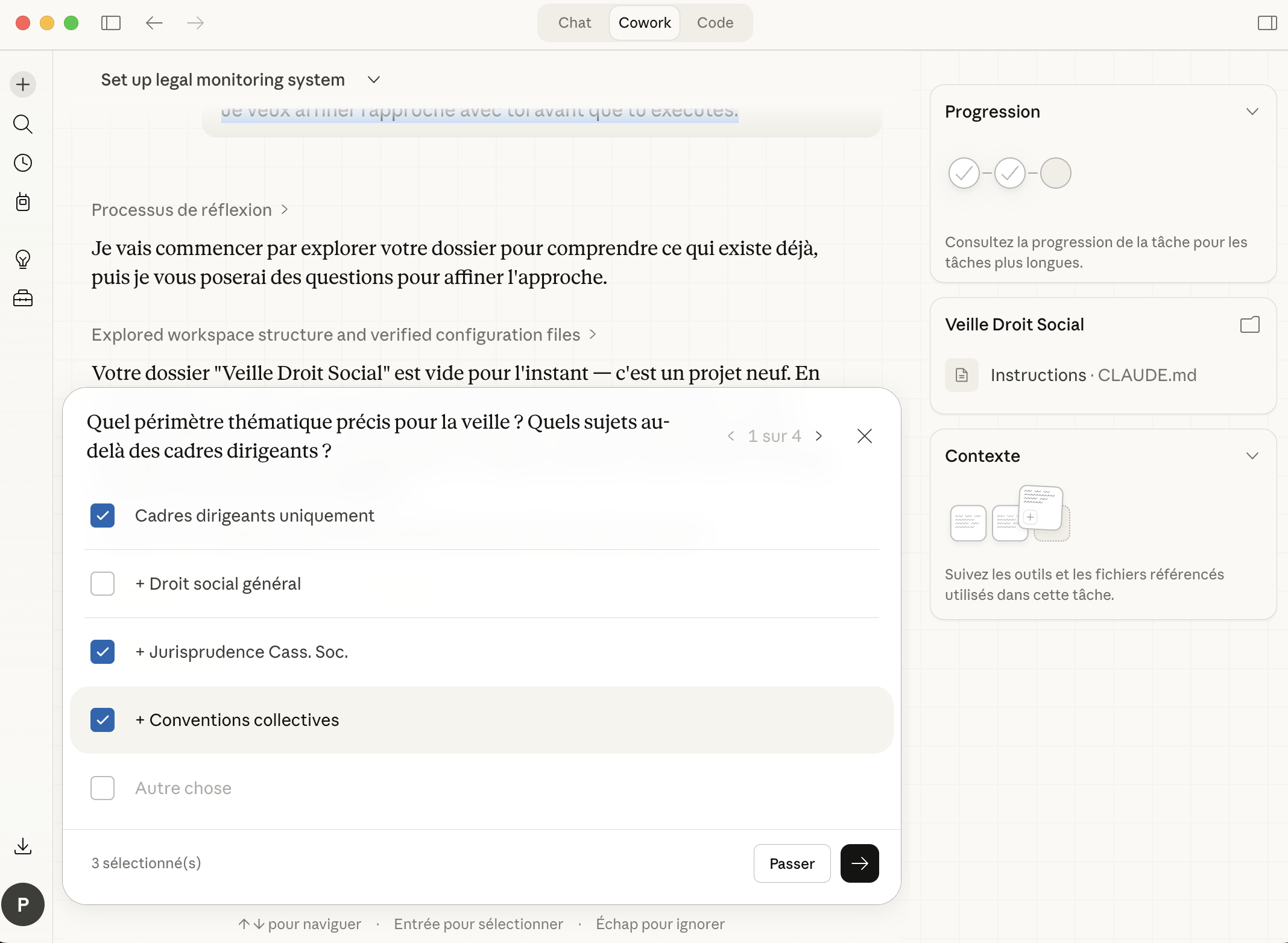
When you add AskUserQuestion, Cowork generates an interactive form: clickable buttons, options to select, choices to rank.
You no longer write a 500-word brief. You answer a brief that Claude wrote for you.
The process:
- Claude reads your files in the folder.
- It generates a form that asks for your preferences, your audience, your goals.
- You click your answers in under a minute.
- Claude shows an action plan. You approve it.
- It executes by creating real files in your folder.
It feels like directing someone competent rather than wrestling with a text box.
A concrete example for a lawyer
I want to prepare a briefing note on the latest case-law developments
on workplace harassment, for an ongoing case before the employment
tribunal of Bordeaux.

First explore my folder.

Then ask me questions using AskUserQuestion.

I want to refine the approach with you before you execute.
Claude will ask you: the desired period, the relevant level of jurisdiction, the specific points of the case, the desired output format. You click, it works.
Mac tip
System Settings → Keyboard → Text Replacement. Add /co as a shortcut and paste the universal prompt as the replacement. Three characters, and you're off.
Our upcoming training dates
Free webinars, training and bootcamps. We support you at every step.
Trouver la bonne jurisprudence grâce à l'IA en 10 minutes
12h – 13h · 31 mars 2026
Journée Intensive IA — Bordeaux
10h — 18h · 10 avril 2026
Créer vos visuels réseaux sociaux sans graphiste ni Canva
12h – 13h · 21 avril 2026
Communication Digitale — En ligne
4 jours · 21 avril 2026
Journée Intensive IA — Bordeaux
10h — 18h · 12 mai 2026
Communication Digitale — Bordeaux
1 journée · 19 mai 2026
Your working folder
The part everyone skips
Without this structure, Cowork is an intern with no brief. With it, it's a senior associate.
The recommended structure for a firm
This folder tree lets Cowork produce quality results on your most complex tasks. Claude knows where to find context, where to write, and which templates to follow.
Before submitting any document to Claude, anonymize personal data (names, addresses, numbers). Very soon you'll have access to Lexform Pro, our instant pseudonymization tool, with no AI involved. Pre-register here →
Why this structure
- ▸
CONTEXT/: what Claude needs to know about your firm. It reads this before every task. - ▸
Clients/: one subfolder per active case. The exhibits, the notes, the correspondence. - ▸
Templates/: your best past work. Claude draws on it to reproduce your level of quality and your structure. - ▸
Research/: monitoring, case law, doctrinal articles. The raw material. - ▸
Deliverables/: the default place where Claude creates its files. Your source files stay intact.
The firm-context.md file
This is Claude's memory. Without it, you re-explain yourself every session.
# Firm Context

## The firm
- [NAME] firm, specialized in [PRACTICE AREAS]
- Bar of [CITY]
- [X] lawyers, [X] associates

## Working rules
- Always cite sources with article or docket number
- Default output format: Markdown
- Name files: YYYY-MM-DD_type_description.md
- Tone: professional, concise, formal
- Every research note contains: the question asked, applicable texts,
  relevant case law, analysis, recommendation

## What I do NOT want
- No empty filler ("it should be noted that...")
- No lists of more than 7 points
- No conclusions without a precise textual basis
- Never invent a docket number or article reference
The anti-ai.md file
This is your blacklist. Everything Claude must never do.
Examples: "Never start with 'Of course!'", "No systematic passive constructions", "Never cite an article without giving the source code or statute", "No phrasing like 'it is interesting to note that'".
The more precise this list, the less you have to rework the deliverables.
Global instructions (just once)
Go to Settings → Cowork → Global instructions. It's a permanent prompt that Claude reads before every session — a job description for your assistant.
# GLOBAL INSTRUCTIONS

## BEFORE EVERY TASK
1. Read the "CONTEXT/" folder. No task starts without it.
2. If the task concerns a client, read the matching subfolder in "Clients/".
3. If a relevant template exists in "Templates/", study its structure.

## WHERE YOU MAY WRITE
You create files ONLY in "Deliverables/" unless explicitly instructed otherwise.
The CONTEXT/ and Templates/ folders are read-only.

## RULES
- If the request is unclear, ask questions using AskUserQuestion.
- Go straight to the deliverable. No commentary unless I ask for it.
- Do not delete or modify any existing file without authorization.
- Always cite statutory articles and docket numbers. If you are not
  certain of a reference, say so explicitly.
You set this up once. It runs every session. You never type it again.
- The
CONTEXT/folder is Claude's memory. Without it, you re-explain your firm every session. - The
anti-ai.mdfile is your blacklist: the more precise it is, the less you rework the deliverables. - Global instructions are set up once in Settings → Cowork. They run every session without you having to think about them.
Projects: one per client matter
The concept
Projects turn Cowork from a one-off tool into a genuinely permanent workspace.
A Project = a folder + memory + permanent instructions + scheduled tasks.
When you create a Project, Claude remembers what you did together. It knows the matter's context. You no longer have to re-explain everything every session.
Important: without a Project, Cowork has no memory between sessions. Each new conversation starts from scratch (except for what's in your files). The Project is what provides continuity.
Creating a Project
In the left navigation panel, click the "+" next to "Projects". Three options:
- Start from scratch: a new project with instructions and files.
- Import from Claude Chat: transfer an existing project.
- Use a local folder: link a folder that already exists on your machine.
For a client matter, option 3 is the most natural: point it at the client's subfolder in your folder structure.
Permanent instructions: the real lever
This is text that Claude will read at every session within this Project. Example for an employment-tribunal matter:
# Instructions — Dupont matter

## Context
- Client: Jean Dupont, employee, permanent contract since 12/03/2018
- Employer: SAS TechCorp, SYNTEC collective agreement (IDCC 1486)
- Subject: challenging a dismissal for professional incompetence
- Jurisdiction: employment tribunal of Bordeaux
- Opposing counsel: Me Martin, XYZ firm

## Specific rules
- Applicable law: French Labour Code + SYNTEC agreement
- Always check the collective-agreement provisions in addition to statute
- Note format: Question → Texts → Case law (min. 3 decisions) → Analysis → Recommendation
With these instructions, every time you open this Project, Claude knows the framework it's working in. You save 5 minutes of context every session.
Project ideas for a firm
- ▸One Project per complex matter: employment litigation, M&A, insolvency proceedings
- ▸Legal monitoring: recurring research on your areas of specialty
- ▸Models & templates: generating and updating your standard documents
- ▸Communication: drafting articles, LinkedIn posts, the firm's newsletter
- ▸Firm admin: billing follow-up, reminders, organization
MCP connectors: plugging Claude into French law
Why it matters
Without a connector, Cowork works only with the files you give it and the knowledge in its model. With MCP (Model Context Protocol) connectors, it queries official legal databases in real time.
For a lawyer, that means: querying Légifrance, collective agreements, the Official Journal or Pappers Justice directly from Cowork. Claude no longer "guesses" the law — it goes and fetches it at the source.
Webinar: Connect your AIs to the law
We install the MCPs together on Claude and ChatGPT in 1 hour. Watch the replay →
The Légifrance MCP (Code) - Free
Connect Claude to the laws, decrees and ordinances in force on Légifrance. Copy this configuration into your claude_desktop_config.json file.
{
  "mcpServers": {
    "code": {
      "command": "npx",
      "args": [
        "mcp-remote",
        "https://code-mcp.super-novia.io/mcp?api_key=mcpf_bS0t0ltMfXMXJU9nE4VmYxkJ2TMtLPUS"
      ]
    }
  }
}
Config file: Mac ~/Library/Application Support/Claude/claude_desktop_config.json · Windows %APPDATA%\Claude\claude_desktop_config.json
The legal connectors available
Légifrance (LODA)
Source: Légifrance
Laws, decrees, ordinances in force
KALI
Source: Légifrance
Collective agreements and accords
JORF
Source: Official Journal
Texts published in the Official Journal
JURI
Source: Légifrance
Case law (Court of Cassation, Courts of Appeal)
Pappers Justice
Source: Pappers
Court decisions, search by party
Codes
Source: Légifrance
Navigation through the French Codes (Civil, Labour, Criminal...)
data.gouv.fr
Source: data.gouv
French public data
How to install them
Method 1 — Via custom connectors (recommended)
- In Claude Desktop, go to Settings → Connectors.
- Click "Add a custom connector".
- Enter the MCP server URL.
- Confirm and restart Claude Desktop.
Method 2 — Via the configuration file
For the more comfortable, edit the configuration file directly:
- Mac:
~/Library/Application Support/Claude/claude_desktop_config.json - Windows:
%APPDATA%\Claude\claude_desktop_config.json
Check that it works
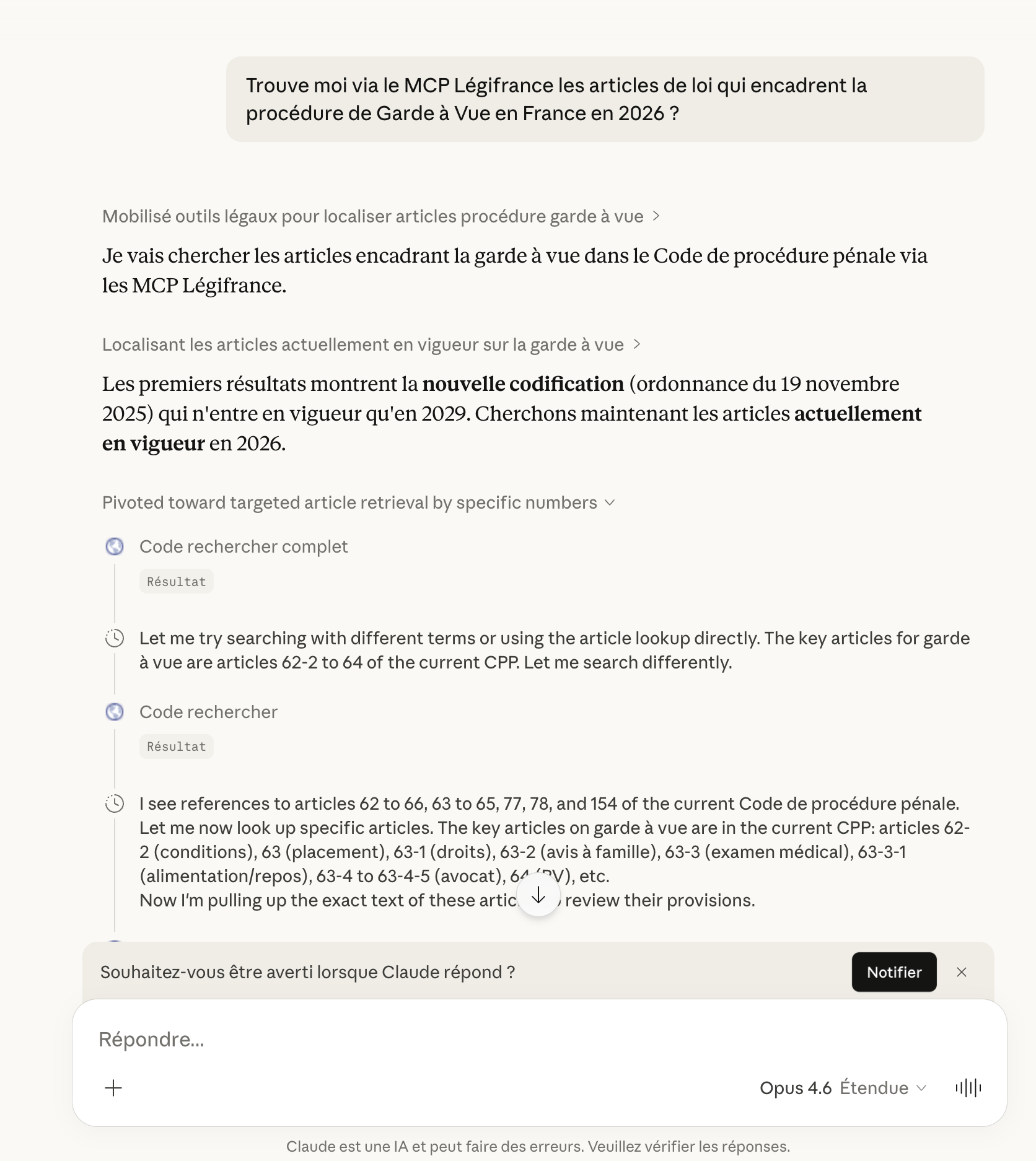
Once your connectors are installed, test them:
Find the last 5 decisions of the Court of Cassation, social chamber,
on the topic of workplace harassment.

For each decision: date, docket number, the solution reached.

Create a file Research/case-law-workplace-harassment.md
If Claude returns sourced results with verifiable docket numbers: your connectors are working.
Absolute rule
Always check the references Claude returns. MCP connectors drastically reduce hallucinations because Claude queries the official sources. But human verification remains essential. It's your responsibility as a lawyer, not the tool's.
- Without MCPs, Claude "guesses" the law. With legal MCPs, it queries it in real time at the official source.
- Légifrance (LODA, KALI, JURI, JORF), Pappers Justice and data.gouv.fr are all accessible from Cowork.
- MCPs reduce hallucinations but don't eliminate them. Human verification remains your responsibility.
Scheduled tasks: automating the firm's routines
The principle
You can schedule Claude to run tasks automatically, at set times and frequencies. In Cowork, type /schedule or click "Scheduled" in the left sidebar.
Important condition: your computer must be on and the Claude Desktop app open. If the computer is asleep at the scheduled time, the task will run automatically as soon as you reopen the app.
4 essential scheduled tasks for a lawyer
1. Weekly case-law monitoring
Every Monday at 8am:

Find the decisions published last week in employment law
(social chamber of the Court of Cassation).

Filter on: dismissal, harassment, overtime.

Create a file Research/Monitoring/YYYY-MM-DD_weekly-watch.md with,
for each decision: date, number, topic, solution, practical
impact in 2 lines.
2. Official Journal tracking
Every day at 7:30am:

Check the day's JORF. Identify the texts relevant to a firm
specialized in employment law and business law.

Create a summary in Research/Monitoring/OJ/YYYY-MM-DD_oj.md
3. Procedural deadline audit
Every day at 8am:

Go through the matters in Clients/ and identify in each
summary sheet the deadlines within 15 days.

Create an alert in Deliverables/urgent-deadlines.md
4. Weekly planning preparation
Every Sunday at 8pm:

Read the files in the Clients/ folder and create a weekly plan
prioritized by urgency and deadline.

Save it in Deliverables/week-plan-YYYY-WXX.md
These tasks become even more powerful when connected to the legal MCPs. Monitoring goes from "a summary based on what Claude knows" to "a summary based on the decisions actually published this week on Légifrance".
Plugins and Skills: specializing Claude for law
Plugins, Skills, what's the difference?
A plugin is a complete package that bundles several elements: skills (specialized capabilities), connectors (links to your tools), slash commands, and sometimes dedicated subagents.
Skills are the heart of the system. They encode the domain expertise, best practices and step-by-step workflows that Claude calls on automatically when the context calls for it. When you install a plugin, its skills become available. You activate them with / or the + button in Cowork.
Skills
The encoded expertise. Claude knows how to do the work.
Connectors
The links to your tools (Slack, Drive, Box, etc.).
Commands
The shortcuts /review-contract, /triage-nda, etc.
How to install a plugin
- In Cowork, click "Customize" in the sidebar.
- Click "Browse plugins".
- Choose a plugin and click "Install".
- Type
/in the chat to see the available commands.
The Legal plugin: the most relevant for lawyers
Anthropic has open-sourced a Legal plugin designed for in-house counsel. It's built for common-law systems, but its structure adapts directly to French law. It's a solid base for understanding what Skills make possible.
The 6 Skills in the Legal plugin
Contract Review
Analyzes a contract clause by clause against your playbook. Classifies gaps (green/yellow/red) and generates redline suggestions.
NDA Triage
Pre-screening of incoming NDAs. Automatic classification: GREEN (sign directly), YELLOW (review), RED (significant issues).
Compliance
GDPR/CCPA workflows, DPA review, handling of data-subject requests (exercise of rights).
Legal Risk Assessment
Configurable risk matrix. Classification by severity level, escalation criteria.
Canned Responses
Templated responses for recurring requests: data-subject rights, discovery holds, vendor questions.
Meeting Briefing
Meeting preparation: gathering context, summarizing the issues, tracking action items.
The Legal plugin's slash commands
| Command | What it does |
|---|---|
/review-contract | Analyzes a contract against your playbook, clause by clause |
/triage-nda | Quick pre-screening of an NDA (green/yellow/red) |
/vendor-check | Checks existing agreements with a vendor |
/brief daily | Morning brief: pending contracts, deadlines, open questions |
/respond | Generates a templated response for recurring requests |
How to adapt it to French law
Anthropic's Legal plugin is built for common-law systems (Delaware, New York, California positions). For a French firm, you need to adapt the playbook: your standard positions, your escalation thresholds, your legal references. The legal.local.md file is where you configure all of this.
It's configuration work, not code. You define your usual contractual positions (liability cap, intellectual property, governing law, confidentiality duration), and Claude uses them as a reference to analyze the contracts submitted to it.
Claude Legal Guide for French Lawyers
We're preparing a dedicated guide to the full configuration of the Legal plugin for French law: adapted playbook, standard contractual positions, integration with the Légifrance and KALI MCPs, employment-tribunal and business-law workflows.
Sign up for our webinars to be notified when it's released.
Other plugins useful for a firm
- ▸ Financial Analysis: for matters involving damages calculations, balance-sheet analysis or company valuations.
- ▸ Brand Voice: Claude analyzes your existing documents and extracts your writing style to make your output consistent.
Building a custom plugin
A custom plugin can encode your working methods: how you structure a writ of summons, your usual damages scales, your submission templates, your pre-hearing checklists. It doesn't require knowing how to code; it's structured configuration.
Anthropic has open-sourced the 11 reference plugins on GitHub. Each one is a template you can duplicate and adapt to your practice. The structure is in Markdown, not code.
Dispatch: pilot Claude from your phone
The concept
Dispatch lets you send instructions to Cowork from the Claude mobile app. Claude runs them on your desktop computer while you're elsewhere.
You're at the courthouse and need a quick search. You type on your phone:
Find the last 3 decisions of the Court of Appeal of Bordeaux on
the reclassification of fixed-term contracts as permanent contracts
in the restaurant sector.
Put the result in Clients/Moreau-FTC/research-reclassification.md
When you get back to the office: the file is there, in your folder.
Setting up Dispatch
- Make sure Claude Desktop is open on your computer (it must stay on and awake).
- Install the Claude app on your phone (iOS or Android).
- Sign in with the same account.
- Your Cowork thread appears — it's the same workspace.
Available on the Pro and Max plans only. The computer must be active: if your Mac is asleep or the app is closed, Claude can't work.
Mobile use cases
| Situation | Instruction from the phone |
|---|---|
| In a hearing | "Note the following opposing arguments: [...]. Create a sheet in the matter folder." |
| In a client meeting | "Check the applicable collective agreement for sector [X]." |
| On the move | "Prepare a draft formal-notice email for the Martin matter." |
| In the evening at home | "Run this week's case-law monitoring and prepare tomorrow's brief." |
8 concrete workflows for lawyers
Each prompt is ready to copy-paste. Adapt the folder names to your own structure.
Workflow 1 — Analyzing an employment contract
Analyze the employment contract in Clients/Durand/employment-contract.pdf.

Identify:
- Clauses that may be unfair or unbalanced
- Compliance with the applicable collective agreement
- Points of attention for the employee
- Litigation risks for the employer

Create a structured report in Deliverables/contract-analysis-durand.md
Workflow 2 — Preparing employment-tribunal submissions
From the summary sheet and the exhibits in the matter
Clients/Lambert/, draft a draft structure of submissions
for the claimant (employee) before the employment tribunal.

Expected outline:
I. Statement of facts
II. Discussion (per head of claim)
III. Quantified claims

For each argument, cite the applicable texts and at least
2 relevant case-law decisions.

Use AskUserQuestion to clarify the heads of claim.
Workflow 3 — Calculating severance pay
The employee has the following characteristics:
- Length of service: 12 years and 4 months
- Reference salary: €3,850 gross/month
- Collective agreement: Metallurgy (IDCC 3248)
- Reason: economic dismissal (redundancy)

Calculate:
1. The statutory severance pay
2. The collective-agreement severance pay
3. The more favorable of the two
4. The compensatory payment in lieu of notice
5. The paid-leave allowance on the notice period

Show the detail of the calculations. Cite the applicable articles.
Create the file in Clients/Berger/severance-calculation.md
Workflow 4 — Monitoring a collective agreement
Query the available sources on the SYNTEC collective agreement
(IDCC 1486).

Identify the latest amendments and accords signed over
the last 6 months.

For each: date of signature, subject, entry into force,
practical impact.

File: Research/CA/syntec-latest-amendments.md
Workflow 5 — Onboarding a new client (family law)
A new client comes to the firm for divorce proceedings.
Create in Clients/NewClient-Divorce/:

1. client-sheet.md — with all the fields to fill in
2. document-checklist.md — list of documents to request from the client
3. timeline.md — timeline template to complete
4. maintenance-estimate.md — calculation grid to fill in
5. matter-opening.md — administrative checklist
   (conflict of interest, escrow account, etc.)

Use AskUserQuestion to find out what type of divorce
(mutual consent, contested, etc.).
Workflow 6 — Employment due diligence (business law)
From the HR documents in Clients/Acquisition-TargetCo/,
carry out a preliminary employment audit:

- Headcount and contract types
- Applicable collective agreements
- Company-level agreements in force
- Ongoing or recent employment-tribunal litigation
- Identified risks (reclassification, overtime, etc.)

Format: structured report with a risk level per topic
(low/medium/high).

File: Clients/Acquisition-TargetCo/preliminary-employment-audit.md
Workflow 7 — Hearing preparation (criminal)
The immediate-appearance hearing is tomorrow.
Matter: Clients/Petit-IA/.

Prepare:
1. A concise pleading sheet (1 page)
2. The character elements to highlight
3. Arguments on the charge as classified
4. The penalties incurred and the alternatives to imprisonment
5. Useful case-law references (mitigating circumstances)

Put everything in Clients/Petit-IA/Hearing-Tomorrow/
Workflow 8 — Writing an article for the firm's website
Write a 1,200-word article on the topic:
"Dismissal for unfitness: the complete procedure in 2026"

Structure:
- A hook aimed at the layperson (no jargon)
- Definition and legal framework (with Labour Code articles)
- The stages of the procedure
- The employee's rights
- The employer's common mistakes
- FAQ (5 questions)

Tone: educational, accessible, professional.
Audience: an individual looking for information.

File: Deliverables/articles/dismissal-unfitness-2026.md- All these prompts are starting points. Adapt the folder names, the jurisdictions and the references to your real situation.
- The
AskUserQuestioninstruction turns each workflow into a structured dialogue — Claude asks you what it needs before executing. - Combine the workflows with the legal MCPs to move from a generic result to a sourced, verifiable one.
The limits, unfiltered
You need to know these points before making Cowork your everyday tool.
Credit consumption
Cowork consumes significantly more credits than a classic Chat conversation. On the Pro plan ($20/month), you can hit the limit in a single intense day of work.
It burns through your credits fast
Cowork consumes significantly more credits than a classic Chat conversation (the multi-step loops and file access add to consumption). On the Pro plan ($20/month), you can hit the limit in a single intense day of work. If Cowork becomes your main tool, the Max plan will probably be necessary (from $100/month for Max 5x, or $200/month for Max 20x). Better to know now.
It's not made for simple questions
"What's the limitation period in employment law?" → use Chat. Cowork is designed to produce deliverables, not to answer quick questions. If your task fits in one sentence and doesn't require an output file, Chat is enough.
The app must stay open
There's no web version of Cowork. If you close the desktop app or your computer goes to sleep, the task in progress stops. It's a desktop tool.
Cowork sometimes gets it wrong
Anthropic says so explicitly: it's still a "research preview". On a complex task, Claude can head off in the wrong direction, hallucinate a reference, or over-complicate something simple. Never send a client deliverable without reviewing it.
It slows down on large matters
The more files a matter contains, the longer Cowork takes to explore it. The solution: targeted subfolders. Point it at the project subfolder, not the parent folder.
Cowork asks before deleting
If you ask it to delete a file, it shows a confirmation window and waits for your approval. It will never delete anything without your sign-off.
A single conversation thread in Dispatch
There's no way yet to manage several simultaneous threads between your phone and your desktop. One thread at a time.
Security, professional ethics and GDPR
Read this section in full before putting anything sensitive into Cowork.
How it works technically
Cowork runs in an isolated virtual machine on your computer. The files you share stay on your machine. However, the text of your instructions and the content of the files Claude reads during a task are sent to Anthropic's servers so the model can generate its responses. This is how any online AI service normally works.
What is not sent: the files you haven't shared with Cowork, your other apps and system data.
Conversation history is stored locally on your computer. Cowork activity is not captured in Anthropic's audit logs, Compliance API or data exports.
The critical point for lawyers
Official Anthropic recommendation
Anthropic explicitly recommends not using Cowork for regulated workloads ("Do not use Cowork for regulated workloads"). This is a recommendation to take seriously in the context of professional secrecy.
Professional-ethics recommendations
1. Anonymize sensitive data
Before submitting a contract or submissions to Claude, replace names, addresses and identifying personal data with pseudonyms. In the meantime, it's best to anonymize all documents manually before making them available to Cowork.
Lexform Pro is coming soon to automate this step: high-fidelity OCR, instant NLP pseudonymization, AI-ready export, all GDPR-compliant and with no AI in the anonymization process. Pre-register for free →
2. Never delegate the verification
Claude is a production tool, not a validation tool. Every case-law reference, every statutory article cited must be checked by you. MCPs reduce errors by querying the official sources, but don't eliminate them.
3. Professional secrecy
Professional secrecy applies to your digital tools. Make sure that:
- ▸Your computer is encrypted (FileVault on Mac, BitLocker on Windows).
- ▸Your session is locked when you're away from it.
- ▸The Claude folders are not synced to an unsecured cloud.
- ▸You control Cowork's network permissions (Settings → network access).
4. Informing the client
Inform your clients that you use AI tools in your practice. It's a transparency obligation, and most clients appreciate the honesty.
5. Beware of prompt injections
Anthropic identifies injections via web content as the main risk vector. If Claude browses the web during a task, it may encounter content designed to hijack its behavior. Limit web access to trusted sites via the network settings.
The right reflexes
Do
- Anonymize data before processing
- Verify every legal citation
- Inform the client of the AI usage
- Use a dedicated, encrypted folder
- Limit access to what's strictly necessary
- Read the deliverables before sending them
Don't
- Send raw exhibits containing personal data
- Trust the results blindly
- Hide the usage
- Work on the desktop or in Downloads
- Give access to the entire hard drive
- Send directly to the client or the court
- The content of processed files is sent to Anthropic's servers. Always anonymize identifying personal data before processing.
- Anthropic explicitly recommends not using Cowork for regulated workloads — take this seriously given professional secrecy.
- Inform your clients of the AI usage. It's a transparency obligation and most appreciate the honesty.
Going further
You now have what you need to configure Cowork, connect the official French legal sources, create Projects and automate your first tasks. That's the foundation.
Where it gets really interesting is when you combine all of it: custom templates for your specialty, custom plugins that encode your methodology, chained workflows that automate a whole documentary production chain.
Free resources
Library of legal prompts
20 tested prompts by specialty (Employment, Real estate, M&A, Criminal, Family)
French Legaltech Directory
The most complete database of the ecosystem
Webinar replays
Live MCP installation, building a legal application
Zevra guides and training
Zevra develops and maintains the legal MCP connectors mentioned in this guide, and trains lawyers to use AI in their daily practice.
Legal MCP Guide
Step-by-step tutorial to connect Claude to French law
Training
From the discovery workshop (3h) to the residential Bootcamp (3 days, 7 seats max)
Zevra Club
Community, unlimited training, monthly masterclasses
All training can be paid in 3 interest-free instalments. Free cancellation up to 14 days before.
Ready to set up your firm?
Let's talk about your practice and the best way to integrate Cowork into your workflows.
This guide is distributed for free. Feel free to share it, mentioning the source.
Claude Cowork is an Anthropic product. Zevra is not affiliated with Anthropic. The legal MCP connectors mentioned are developed and maintained by Zevra.